
Training plan
Module 1: Introducing Windows 11
- Overview of Windows 11 including Windows Copilot
- Recommendations for typical troubleshooting procedures
- Troubleshooting installation and deployment
- Introduction to management and troubleshooting tools
- Lab: Using Windows 11 troubleshooting tools
Module 2: Administering Windows 11 remotely
- Use Windows Admin Center
- Use Windows PowerShell
- Select a suitable remote administration tool
- Lab: Administering Windows 11 remotely
Module 3: Troubleshooting startup and performing system recovery
- Recovering Windows 11
- Configuring the Registry
- Troubleshooting Windows 11 startup
- Implementing and troubleshooting BitLocker
- Troubleshooting OS service Issues
- Lab: Troubleshooting startup and performing system recovery
Module 4: Troubleshooting devices and device drivers
- Overview of hardware troubleshooting
- Troubleshooting device drivers
- Lab: Troubleshooting devices and device drivers
Module 5: Configuring and troubleshooting network connectivity
- Configuring network connectivity
- Troubleshooting network connectivity
- Implementing and troubleshooting name resolution
- Implementing and troubleshooting remote access
- Lab: Configuring and troubleshooting network connectivity
Module 6: Troubleshooting Group Policy
- Overview of Group Policy
- Resolve GPO application issues on client devices
- Lab: Troubleshooting Group Policy
Module 7: Configuring and Troubleshooting Security Settings
- Implementing network security
- Implementing Windows 11 security features
- Configuring and troubleshooting user accounts
- Lab: Configuring and Troubleshooting Security Settings
Module 8: Configuring and Troubleshooting User State
- Implementing and troubleshooting user state
- Implementing and troubleshooting Folder Redirection
- Lab: Configuring and Troubleshooting User State
Module 9: Configuring and Troubleshooting Resource Access
- Configuring and troubleshooting file access
- Configuring and troubleshooting shared folders
- Implementing and troubleshooting Work Folders
- Managing and troubleshooting printers
- Recovering files
- Lab: Configuring and Troubleshooting Resource Access
Module 10: Troubleshooting apps
- Troubleshooting desktop apps
- Troubleshooting app compatibility
- Managing UWP apps
- Lab: Troubleshooting apps
Module 11: Monitoring and Maintaining Windows 11
- Monitoring Windows 11
- Optimizing Windows 11 performance
- Managing Windows 11 updates
- Lab: Monitoring and Maintaining Windows 11
Recommended prerequisite knowledge
- Networking Fundamentals: common protocols, topologies, hardware and media, routing, switching, IP addressing (IPv4/IPv6), and name resolution.
- Active Directory/AD DS Concepts: basic principles of a domain environment and associated administration.
- Windows Client: installation, configuration, and troubleshooting of Windows personal computers (ideally Windows 10/11).
- Security (Basics): essential concepts, including PKI.
- Scripting (Basics): general understanding of scripting and Windows PowerShell syntax.
- Windows Server (Basics): understanding of Windows Server roles and services in an enterprise environment.
- Mobile Devices (Basics): general knowledge of iOS and Android configuration options (useful, but not required).
Eccentrix Corner Articles: Windows 11 Support and Troubleshooting Resources (MS55342)
Explore our technical articles on Windows 11 support and troubleshooting (MS55342) published on Eccentrix Corner. These resources delve into key concepts, share best practices, and offer practical guides to maximize your learning and success. Our experts present real-world examples to help you hone your diagnostic skills and effectively resolve issues related to startup and recovery, devices and drivers, network connectivity, Group Policy Objects (GPOs), security, user state, resource access, applications, performance monitoring, and Windows updates.




Windows 11 troubleshooting training (MS55342)
The Windows 11 Support and Troubleshooting (MS55342) training course is designed for IT professionals who provide support and troubleshoot incidents on Windows 11 workstations and devices in an enterprise environment, particularly within an on-premises Windows Server Active Directory domain. This course covers essential topics such as adopting a troubleshooting methodology, using Windows 11 diagnostic tools, remote administration (Windows Admin Center, Remote Desktop, Quick Assist, PowerShell), and troubleshooting startup and recovery, devices and drivers, network connectivity (including VPN), Group Policy Objects (GPOs), security settings, user status, resource access, and applications.
This course provides you with the knowledge and best practices to diagnose issues faster, reduce downtime, and maintain a reliable level of service, while also improving performance monitoring and Windows update management in an enterprise context.
Why take the Windows 11 – Support and Troubleshooting (MS55342) course?
In a corporate environment, Windows 11 workstations are central to productivity. The ability to quickly diagnose and efficiently resolve incidents (startup, network, access, applications, security, updates) is essential for minimizing downtime and maintaining reliable service levels. This training helps you adopt a structured troubleshooting methodology and master Windows 11 tools and remote administration, enabling you to intervene faster and more consistently, even in complex contexts (domain-joined workstations, security policies, Group Policy Objects (GPOs), VPN access, etc.).
By developing expertise in Windows 11 support and troubleshooting, you will enhance your ability to improve workstation availability and business continuity, accelerate the resolution of intermediate (Tier 2) incidents, better understand the impact of security settings, Group Policy, and updates, and support users and IT teams in an Active Directory environment.
Key skills you will learn in the Windows 11 – Support and Troubleshooting (MS55342) training course
Our MS55342 course offers a practical and structured approach to Windows 11 support in an enterprise environment (domain-joined workstation). Key skills include:
Windows 11 Troubleshooting Methodology and Tools
Learn to apply a consistent diagnostic approach and use the main Windows 11 troubleshooting tools to quickly isolate the root cause of an incident.Remote Administration and User Support
Discover how to effectively intervene remotely with tools such as Windows Admin Center, Remote Desktop, Quick Assist, and Windows PowerShell.Startup Troubleshooting and System Recovery
Understand the startup process, the Windows Recovery Environment (Windows RE), the Boot Configuration Data (BCD), and learn how to resolve service issues and recover a workstation.Peripherals and Drivers: Diagnosis and Resolution
Master best practices for troubleshooting hardware, peripheral, and driver-related incidents.Network Connectivity and Remote Access (including VPN)
Learn how to diagnose wired and wireless network issues, IPv4/IPv6 connectivity problems, name resolution, and remote access and VPN issues.Group Policy Objects (GPOs) and Client Configuration
Understand how GPOs are applied on the client side and develop the skills to troubleshoot policy-related configuration problems.Security and Authentication: Configuration and Troubleshooting
Explore Windows 11 security settings (e.g., Credential Guard, Exploit Guard, Application Guard), Windows Hello, login issues, and Secure Boot.- User State and Resource Access
Learn how to configure and troubleshoot user state synchronization (e.g., roaming profiles, folder redirection) and resolve resource access issues (file permissions, printer permissions, file retrieval).
Applications, Application Control, and Kiosk Mode
Develop the skills to troubleshoot desktop applications, UWP applications, the Microsoft Store, AppLocker policies, and understand how to enable/configure Kiosk Mode.- Monitoring, Performance, and Windows Updates
Learn to identify performance issues and manage/troubleshoot Windows updates in an enterprise environment.
Instructor-led training for better mastery
Our Windows 11 Support and Troubleshooting (MS55342) course offers interactive sessions led by experienced instructors. Through demonstrations, real-world scenarios, and hands-on labs, you will develop strong skills for diagnosing and resolving Windows 11 incidents in an enterprise environment (domain-joined workstation), including remotely.
By the end of the course, you will be ready to apply a structured troubleshooting methodology, effectively use Windows 11 administration and diagnostic tools, and address common issues related to startup/recovery, networking, Group Policy Objects (GPOs), security, applications, performance, and Windows updates.
Laboratory environment (overview)
You will practice in a structured lab environment, with guided steps to validate your progress throughout the exercises. Depending on the lab, it is usually possible to save your progress and resume the steps later, making it easier to practice between sessions.
To ensure a comprehensive experience, a fully configured environment is provided, giving you access to the features required for the course scenarios (according to module requirements and lab conditions).
After the training, access to the virtual machines and guided steps remains available for up to 180 days.
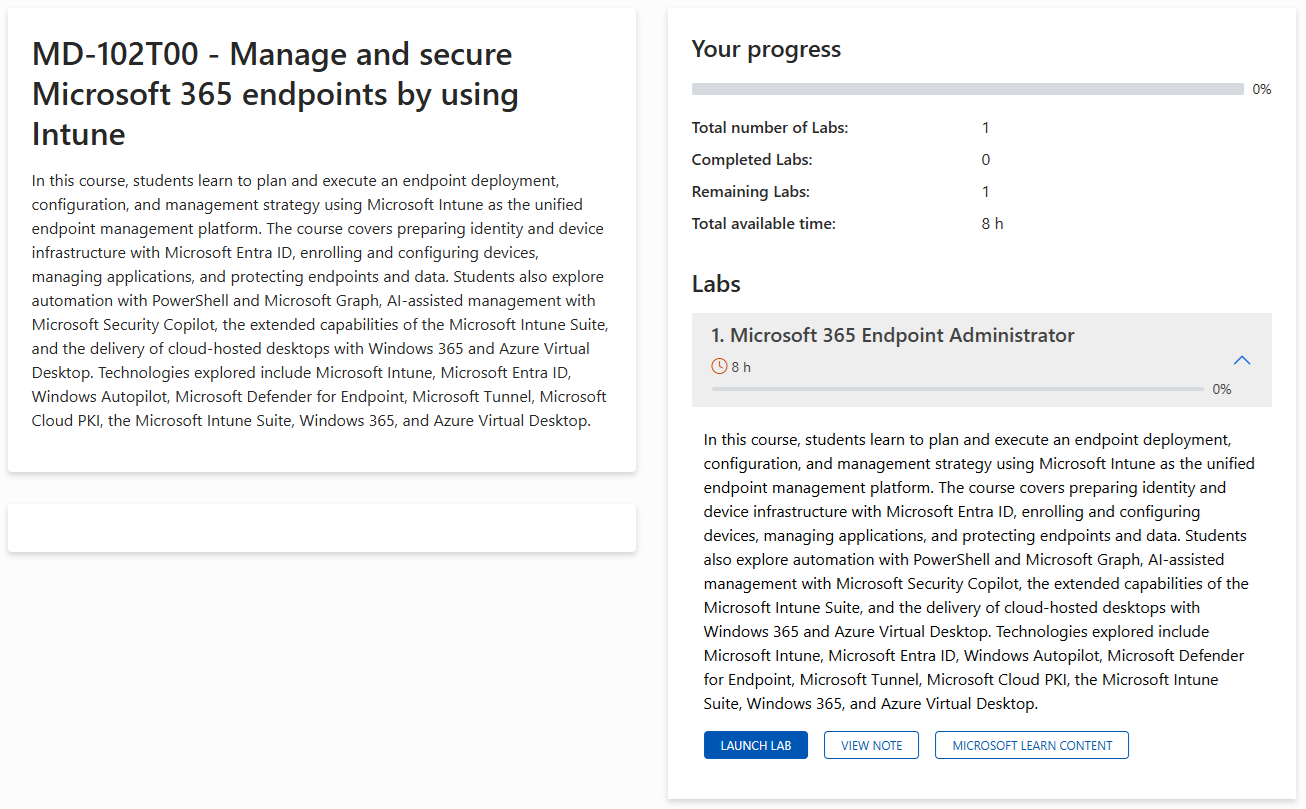
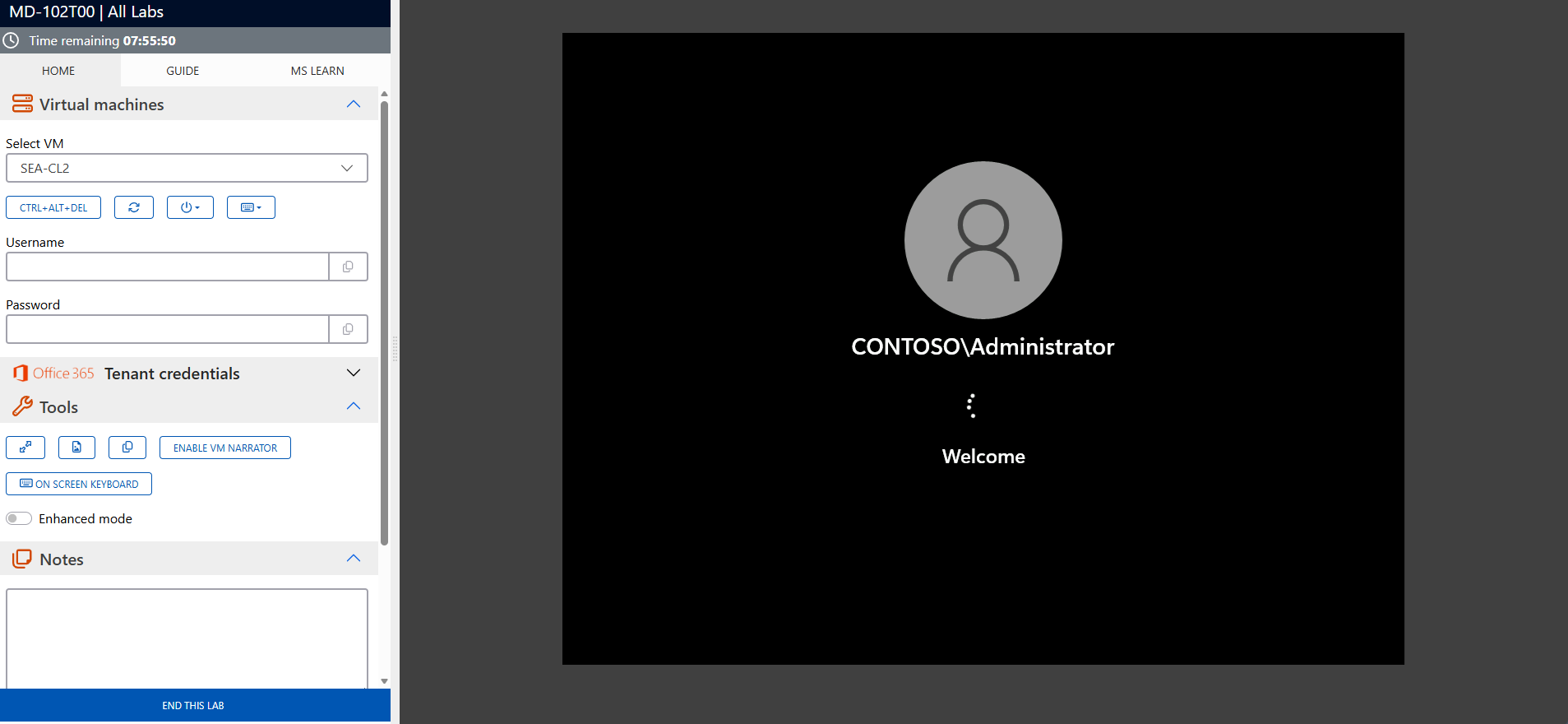
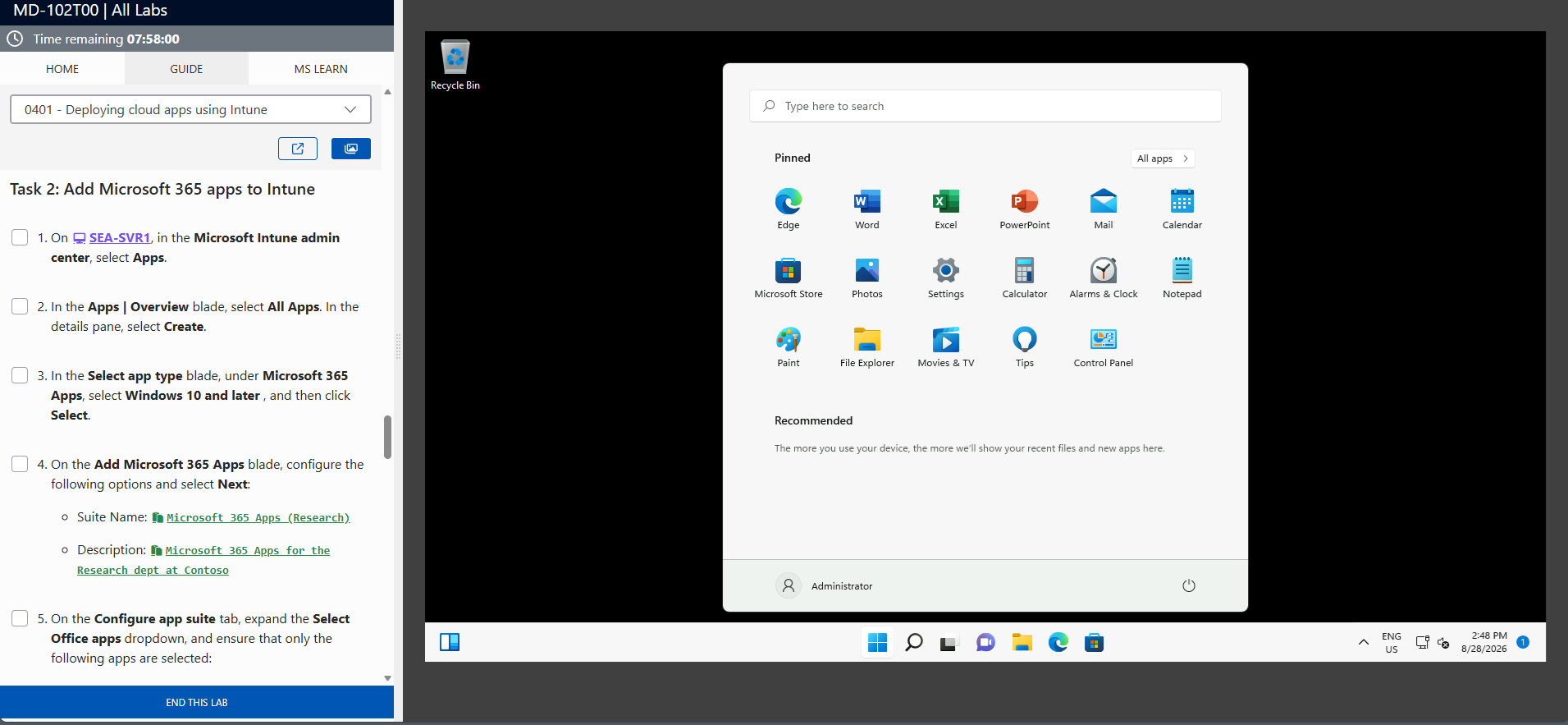
The screenshots above are provided as examples and may vary depending on the lab version and updates.
Who should take the Windows 11 – Support and Troubleshooting (MS55342) course?
The MS55342 course is ideal for:
- Enterprise Desktop Support Technicians (EDSTs) providing intermediate (Tier 2) support on domain-joined Windows 11 workstations, particularly in enterprise environments.
- System administrators and support engineers who administer and troubleshoot Windows 11 workstations, devices, and users, as well as associated network and security resources.
- IT professionals who want to enhance their skills in diagnostics, remote administration, network troubleshooting, Group Policy Objects (GPOs), security, and Windows maintenance (updates, performance) within an Active Directory context.
Optimize your workstation support with Windows 11 – Support and troubleshooting
By completing the Windows 11 Support and Troubleshooting (MS55342) course, you will develop the skills necessary to effectively diagnose and resolve incidents on Windows 11 workstations and devices in an enterprise environment (Active Directory domain). This course helps you improve service continuity by strengthening your capabilities in key areas: startup and recovery, devices and drivers, network connectivity (including VPN), Group Policy Objects (GPOs), security, applications, performance, and Windows updates.
Strengthen your troubleshooting reflexes and increase your operational efficiency. Register today for the MS55342 course to provide faster, more reliable, and better-structured support for Windows 11.
Frequently asked questions
The training covers the essential skills for supporting and troubleshooting Windows 11 in an enterprise environment (domain-joined position). You will learn about new features in Windows 11 and a troubleshooting methodology, remote administration (Windows Admin Center, Remote Desktop, Quick Assist, and PowerShell), startup troubleshooting and system recovery (Windows RE and BCD), device and driver issues, network connectivity (wired/wireless, IPv4/IPv6, name resolution, and VPN), GPO troubleshooting, security and authentication (Windows Hello, Secure Boot, and protection features), user state (roaming profiles and folder redirection), resource access (permissions, printers, and file recovery), application troubleshooting (Microsoft Store, AppLocker, and kiosk mode), as well as performance monitoring and Windows update management.
This training is primarily intended for Enterprise Desktop Support Technicians who provide Tier 2 support for domain-joined Windows 11 workstations, typically in medium to large organizations. It is also suitable for IT professionals who administer and support Windows 11 workstations, devices, and users, as well as associated network and security resources.
The course is at an intermediate level. It is recommended to have a basic understanding of networking (addressing, name resolution, connectivity and VPN), knowledge of Active Directory/AD DS, experience with Windows client (installation, configuration and troubleshooting), as well as basic knowledge of security and PowerShell.
Upon completion of this training, you will be better equipped to diagnose Windows 11 incidents more quickly, standardize your interventions using a structured troubleshooting methodology, and reduce workstation downtime. You will also strengthen your ability to address critical business issues, including startup, networking, Group Policy Objects (GPOs), security, applications, and updates.
Yes. The training includes labs associated with the modules to practice troubleshooting tools and scenarios, including remote administration, recovery, networking, GPOs, security, applications, as well as monitoring and maintenance.
It improves the quality and consistency of support by strengthening your ability to handle recurring and complex Windows 11 incidents in an enterprise environment. You will develop better diagnostic skills, a greater mastery of Windows 11 tools, and a clearer understanding of the interactions between the client workstation, the Active Directory domain, group policies, security, and the network.
Yes, training can be offered in a virtual classroom, depending on the schedule and sessions available at Eccentrix.
Discount and financing options depend on your Eccentrix terms (e.g., corporate agreements, volume, public sector or one-time promotions).