
Training plan
Module 1: Installing Windows 11
- Introducing Windows 11
- Choosing an edition of Windows 11
- What’s new in Windows 11 since Windows 10?
- Overview of Windows Copilot
- Navigating the user interface
- Overview of installation options
- What is OOBE?
- Provisioning packages during OOBE
- Autopilot
- Local interactive installation
- Deployment options: Windows ADK, MDT
- Configuration Manager
- Installing Windows 11
- Hardware requirements
- Licensing and activation options
- Lab: Installing Windows 11
Module 2: Upgrading and updating Windows 11
- Upgrading to Windows 11
- In-place upgrades
- Side-by-side migration
- Wipe and load migration
- Migrating user state
- Managing Windows 11 updates
- Overview of Windows Update
- Configuring Windows Update for Business
- Troubleshooting Windows updates
- Lab: Upgrading and updating Windows 11
Module 3: Configuring Windows 11 devices
- Overview of Windows 11 configuration tools
- The Settings app and Control Panel
- Remote options, including: Quick Assist, Windows Admin Center and Windows PowerShell
- Common configuration options
- Managing activation
- Lab: Configuring Windows 11 devices
Module 4: Configuring network connectivity
- Configuring IP network connectivity, including an overview of subnet addressing
- Implementing name resolution
- Managing wired and wireless networks
- Overview of Remote Access
- Lab: Configuring network connectivity
Module 5: Managing storage
- Overview of local storage and network storage options
- Description of a typical disk configuration
- Single SSD with three partitions: EFI System, Boot, and Windows Recovery
- Explanation as to when additional storage might be added, such as managing memory sticks
- Overview of Microsoft terminology relating to disks, partitions, and volumes
- Using Disk Management and Diskpart.exe
- Managing Storage Spaces
- Accessing remote storage
- Shared folders on on-premises file servers
- OneDrive for Business
- Lab: Managing storage
Module 6: Managing files and printers
- Overview of File Systems: FAT, NTFS, and ReFS
- Configuring and managing file access
- File and folder permissions
- Effective access
- Configuring and managing shared folders
- Combining shared folder and local NTFS permissions
- Implementing
- Work Folders
- Managing printers
- Lab: Managing files and printers
Module 7: Managing apps in Windows 11
- Overview of methods used to provide apps to users
- Deploy as part of image
- Deploy with Configuration Manager
- Deploy using Intune
- The Microsoft Store
- Enabling/restricting access
- Configuring Microsoft Edge settings
- Sync settings
- Extensions
- Lab: Managing apps in Windows 11
Module 8: Implementing and managing security
- Managing User Accounts
- Types of accounts: local, domain, online
- Groups, including built-in and strategies for using Global, Universal, and Domain Local groups
- Configuring User Account Control
- Overview of data-related security threats
- Implementing and managing BitLocker
- Windows Security app
- Using security settings to mitigate threats
- Overview of Credential Guard, Exploit Guard
- Overview of network-related security threats and mitigations
- Windows Defender
- Firewall Connection Security Rules
- Lab: Implementing and managing security
Module 9: Monitoring Windows 11
- Monitoring Windows 11
- Overview of performance monitoring tools
- Optimizing performance
- Lab: Monitoring Windows 11
Module 10: Troubleshooting Windows 11
- Managing Windows 11 startup
- Recovering Windows 11
- Managing devices and drivers
- Understanding the registry
- Recovering files
- Lab: Troubleshooting Windows 11
Recommended prerequisite knowledge
To get the most out of the training, it is recommended to have:
- Basic experience in workstation support and Windows administration
- Familiarity with an Active Directory environment (on-premises) and network concepts (DNS, IP, access)
- Understanding of client workstation security (accounts, UAC, encryption) and proficiency with Windows administration tools
Eccentrix Corner Articles: Windows 11 Resources (MS55345)
Explore our technical articles on Windows 11 MS55345 published on Eccentrix Corner. These resources delve into key concepts, share best practices, and provide practical guides to maximize your learning and success. Our experts share concrete insights to help you master the installation, configuration, security, and support of Windows 11 in a professional environment.




Windows 11 Training - Implementation and Management
This Windows 11 training course is designed for IT professionals who want to master the deployment, configuration, and support of Windows 11 in a corporate environment. It covers essential topics such as installation and configuration, account and settings management, network connectivity, workstation security, update management, and troubleshooting common issues. This course equips you with the skills needed to prepare and maintain Windows 11 workstations, enhance security, and ensure a reliable and high-performing user experience.
This training will provide you with the knowledge necessary to effectively administer Windows 11 environments and support your organization’s daily operations.
Why take the Windows 11 training course?
Mastering Windows 11 allows you to reliably, securely, and consistently deploy, configure, and maintain modern workstations. With the rise of hybrid environments, the increasing diversity of devices, and the growing importance of endpoint security, this training helps IT professionals acquire key skills to install and configure Windows 11, manage essential settings, implement security best practices, ensure connectivity, and effectively resolve everyday incidents.
By developing expertise in Windows 11, you can improve the user experience, reduce service disruptions, strengthen the workstation security posture, and more effectively support your organization’s IT operations.
Key skills you will learn in the Windows 11 training
Our Windows 11 (55345) training course provides hands-on, in-depth instruction for deploying, configuring, and supporting Windows 11 in a business environment. Key topics include:
Installing and Configuring Windows 11
Learn how to install and configure Windows 11 to meet your organization’s needs. You’ll cover configuration options, essential settings, and best practices for preparing a production-ready workstation.Managing Accounts, Settings, and User Experience
Learn how to manage local accounts and key system settings. This section covers customizing configurations, managing profiles, and the necessary adjustments to ensure a stable and consistent user experience.Network Connectivity and Resource Access
Master the fundamentals of connectivity in Windows 11: network configuration, resource access, and troubleshooting connection issues. You’ll learn how to quickly diagnose the most common causes of workstation-side network problems.Securing the Workstation and Protecting Data
Strengthen the security of a Windows 11 environment with built-in protection settings and features. You will learn how to mitigate risks, protect data, and implement security practices tailored to current requirements.Managing Updates and System Maintenance
Understand how to keep Windows 11 up-to-date and operational. You will study best practices for managing updates, minimizing downtime, and ensuring business continuity.Monitoring, Troubleshooting, and Incident Resolution
Develop support skills: using diagnostic tools, analyzing symptoms, and providing structured solutions for common problems (performance, startup, applications, peripherals, connectivity).- Compatibility, Peripherals, and Optimization
Learn how to manage hardware and software compatibility, as well as peripherals. You will see how to identify bottlenecks, resolve conflicts, and optimize workstation stability.
This training ensures you will be able to effectively deploy, secure, and support Windows 11 workstations in an enterprise context.
Instructor-led training for better mastery
Our Windows 11 (55345) training course offers interactive sessions led by Microsoft-certified instructors. Through concrete examples and hands-on exercises, you will gain real-world experience in deploying, configuring, securing, and supporting Windows 11 workstations in an enterprise environment.
By the end of the course, you will be ready to standardize workstation configurations, strengthen workstation security, and apply best practices to maintain stable, high-performing, and easy-to-support Windows 11 environments.
Laboratory environment (overview)
You will practice in a structured lab environment, with guided steps to validate your progress throughout the exercises. Depending on the lab, it is usually possible to save your progress and resume the steps later, making it easier to practice between sessions.
To ensure a comprehensive experience, a fully configured environment is provided, giving you access to the features required for the course scenarios (according to module requirements and lab conditions).
After the training, access to the virtual machines and guided steps remains available for up to 180 days.
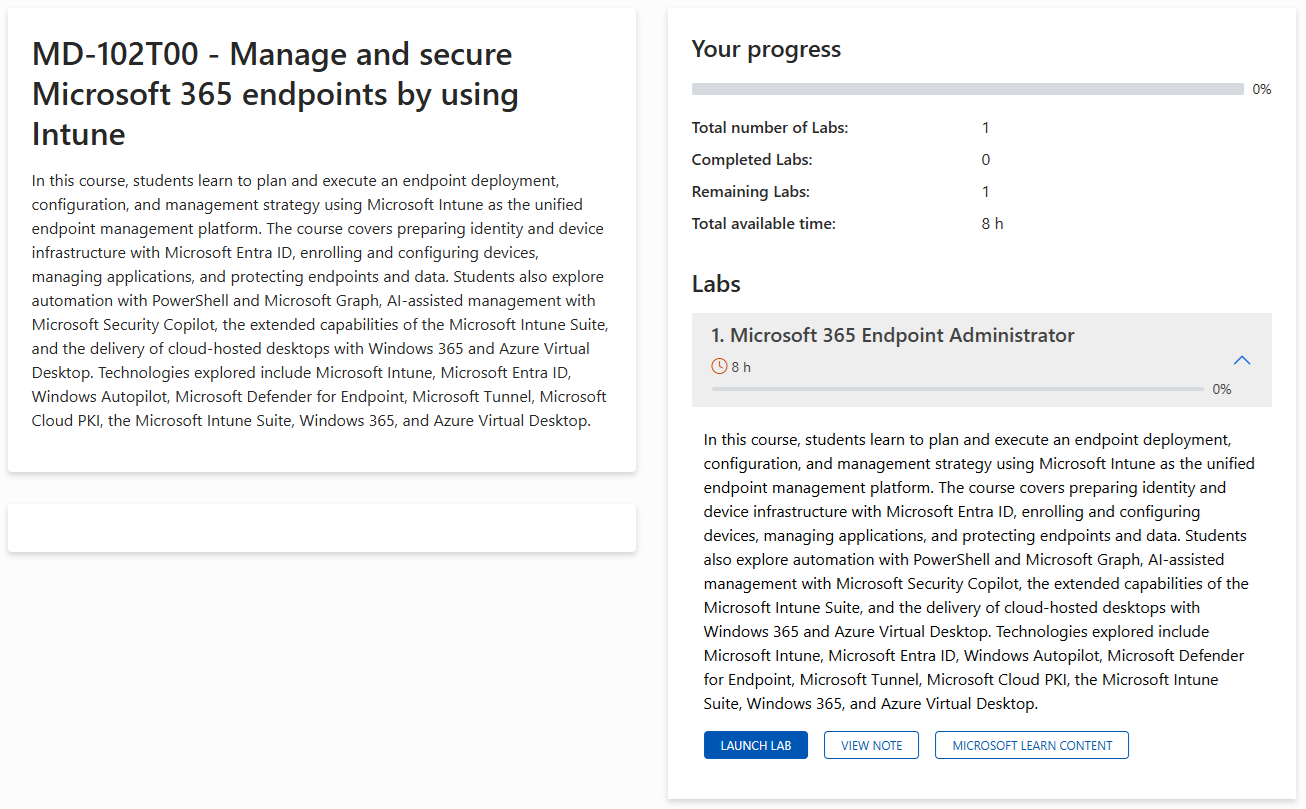
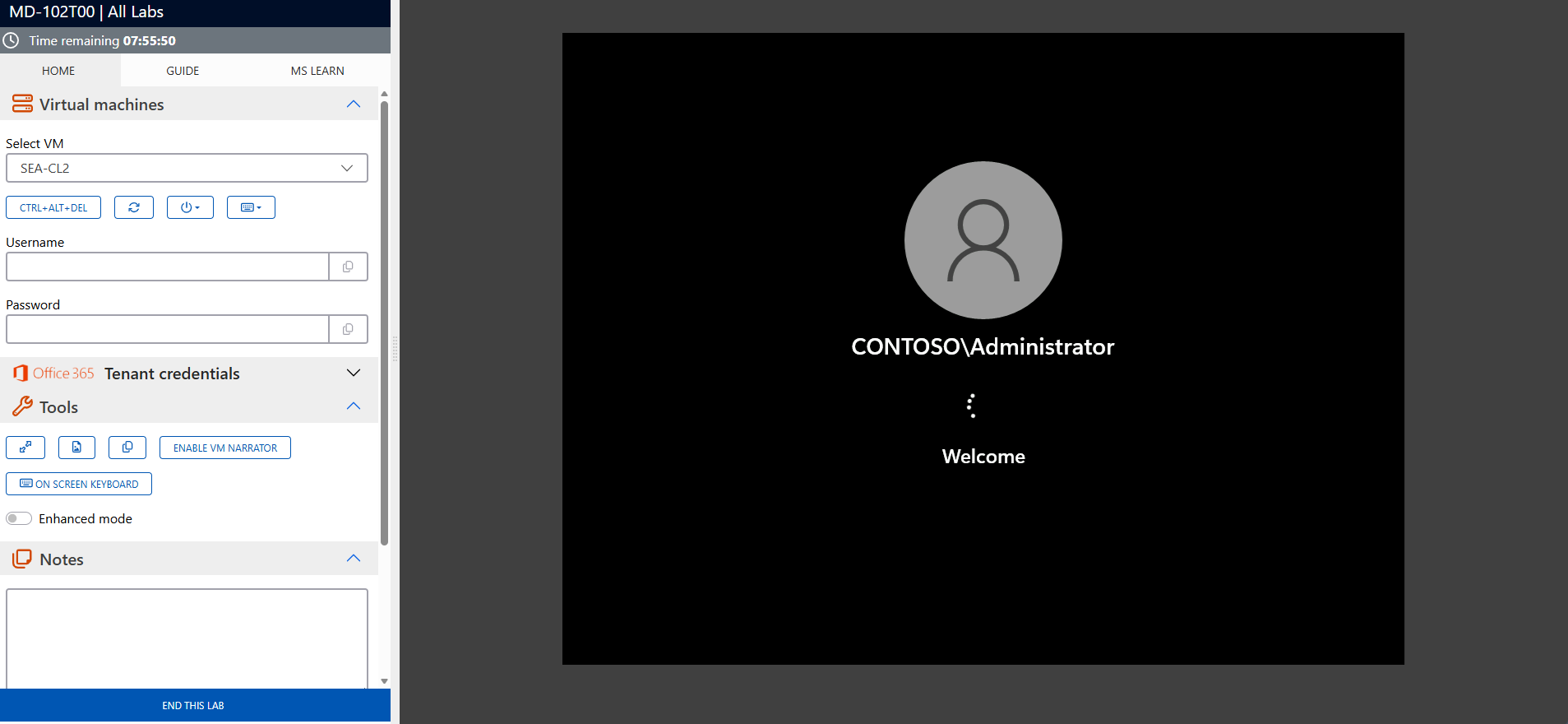
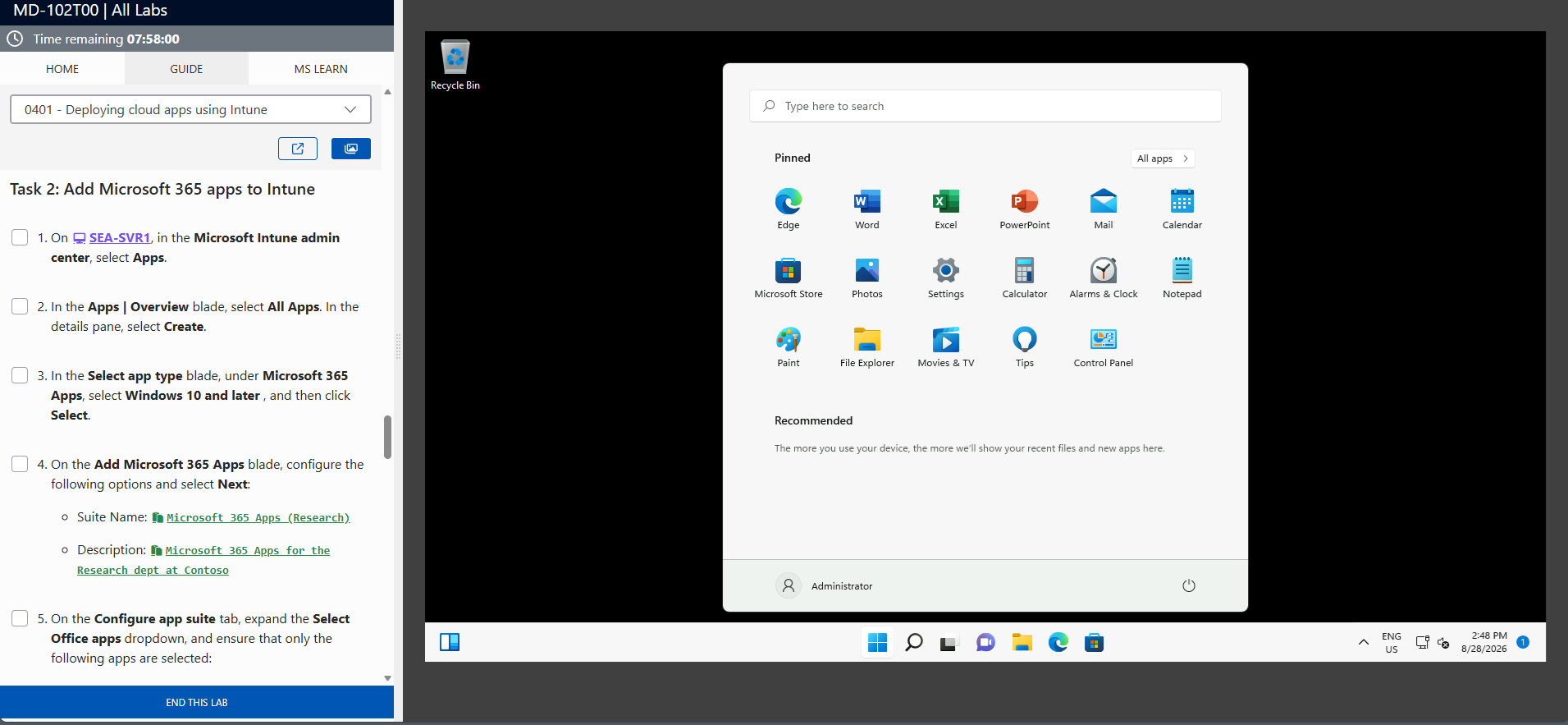
The screenshots above are provided as examples and may vary depending on the lab version and updates.
Who should take the Windows 11 training?
This training is ideal for:
- IT professionals who support Windows 11 workstations, users, and associated network/security resources
- Desktop/Device Support (Tier 2) technicians responsible for supporting Windows 11 workstations in on-premises environments
- Teams that need to standardize the installation, configuration, and security of Windows 11 in an Active Directory domain
Optimize the administration and support of your workstations with Windows 11
By completing the Windows 11 (55345) training course, you will develop the skills necessary to deploy, configure, and maintain Windows 11 workstations in an enterprise environment, while enhancing workstation security and user environment stability. This training helps you improve support efficiency, reduce downtime, and implement reliable maintenance and troubleshooting practices.
Strengthen your Windows 11 administration skills and optimize your workstation management. Register for the Windows 11 (55345) training course today to ensure a more secure, efficient, and manageable environment.
Frequently asked questions
This training is aimed at IT professionals who need to deploy, configure, secure or support Windows 11 in a business environment: support technicians, workstation administrators, operations/infrastructure teams and anyone involved in a migration to Windows 11.
A basic understanding of Windows (navigation, settings, accounts), networking concepts (Wi-Fi/Ethernet, DNS, resource access), and some initial experience in user support are recommended. The training is designed to consolidate and structure these skills within a professional context.
It is practice-oriented. Participants work on concrete scenarios (installation, configuration, security, updates, troubleshooting) in order to develop reflexes directly applicable in a production environment.
You will see in particular: Windows 11 installation and configuration, account and settings management, network connectivity, workstation security, updates and maintenance, compatibility/peripherals, as well as diagnostic and troubleshooting methods and tools.
Yes. It gives you a solid foundation to prepare, standardize and support Windows 11 post-deployment, reducing common incidents and strengthening workstation security and stability.
The training is led by an instructor (interactive sessions), facilitated by Microsoft certified trainers, with demonstrations, exercises and discussions to validate understanding and facilitate field application.